
Add Custom Message to Email Add-on
Adding a custom message to your email invitations is a great way to personalize the signing experience.
If you’re on version 1.9.4.1 or earlier, we recommend updating to the latest version. If updating isn’t possible right now, you can find alternative instructions at the bottom section of this page.
Adding a custom message to your email invitations is a great way to personalize the signing experience.
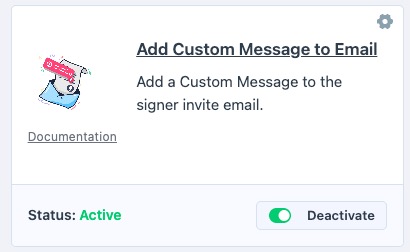
To enable this add-on, visit E-Signature > Add-ons, find Add Custom Message to Email, and enable it.
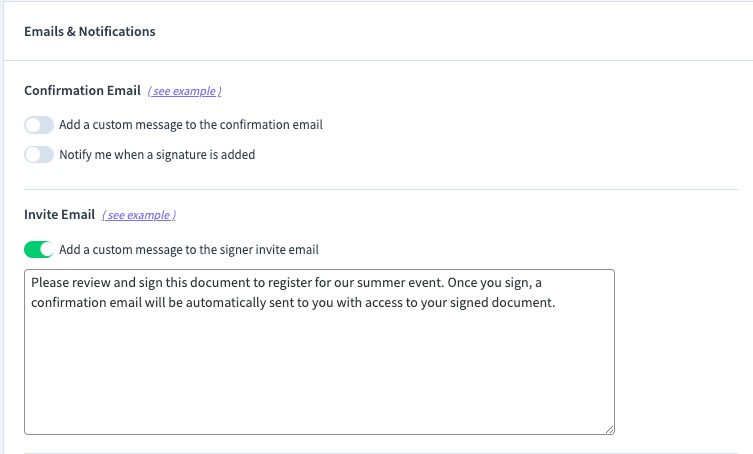
Then, edit your document, visit the Settings tab on the left menu bar, under Emails & Notifications, check the setting "Add a custom message to signer invite email" or "Add a custom message to the signer confirmation email", add your desired text, and publish or send your document.
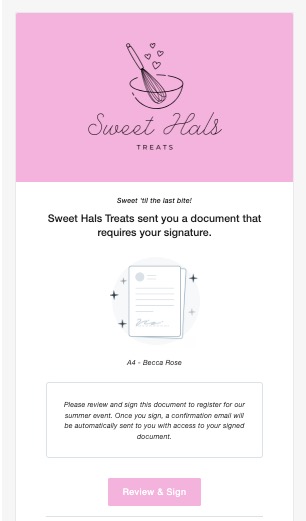
Your custom message is automatically included in the body of the E-Signature invitation email when your signer receives it. If you selected the confirmation email option, your message will appear in the signer's confirmation email instead.
If you’re on version 1.9.4.1 or earlier, we recommend updating to the latest version. If updating isn’t possible right now, follow the steps below. 👇
To enable this add-on, visit E-Signature > Add-ons, find Add Custom Message to Email, and enable it.

Edit your document, scroll to Document Options, check "Add a custom message to signer invite email" or "Add a custom message to the signer confirmation email", enter your text, and click Publish.

When your signer receives their invitation to sign, this custom message will be automatically placed in the body of the E-Signature email.
